How to Use the Screener
A screen where you set conditions to pick only the stocks you want.
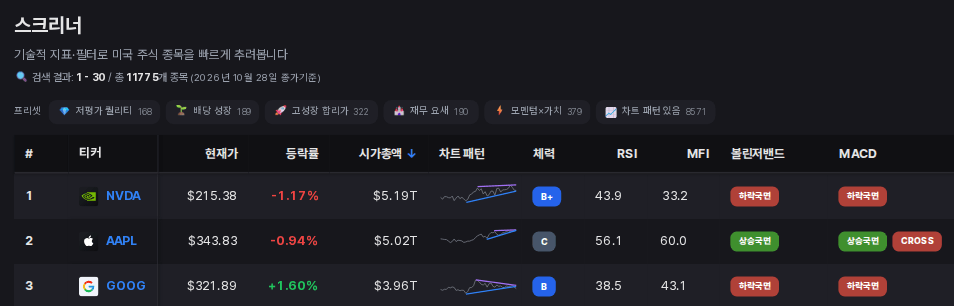
The Screener shows only the stocks that match your conditions, out of 10,000.
Set any condition you want, like companies that pay high dividends.
Start with ready-made conditions
If it is hard to choose conditions yourself, use a ready-made group.
- Go to Screener in the menu bar.
- Click a chip in the Preset row above the table.
- Undervalued Quality is companies that are strong for their price.
- Dividend Growth is companies that have raised their dividends.
- The number next to a chip is how many stocks match.
Set conditions yourself
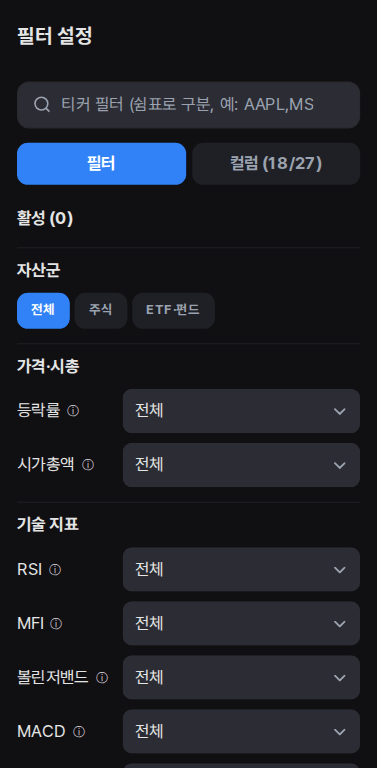
- Click the gear icon on the far right to open Filter Settings.
- In Asset Class, choose stocks only or ETFs as well.
- Choose company size in the Market Cap field.
- You can also set fields like RSI and MACD.
- The table on the left changes to match your conditions.
- In Columns, choose which columns the table shows.
How to read the list
Each row holds everything about that stock today.
- Click a ticker to go to that stock's page.
- The small picture in Chart pattern shows the recent move and the drawn lines.
- Fitness is the company grade. The closer to A, the better.
- RSI is a gauge of whether a stock has risen too much lately.
- Click a column name in the header to sort the rows by it.