How to Read the Ticker Page
A screen that shows one stock's price, company information, and health grade.
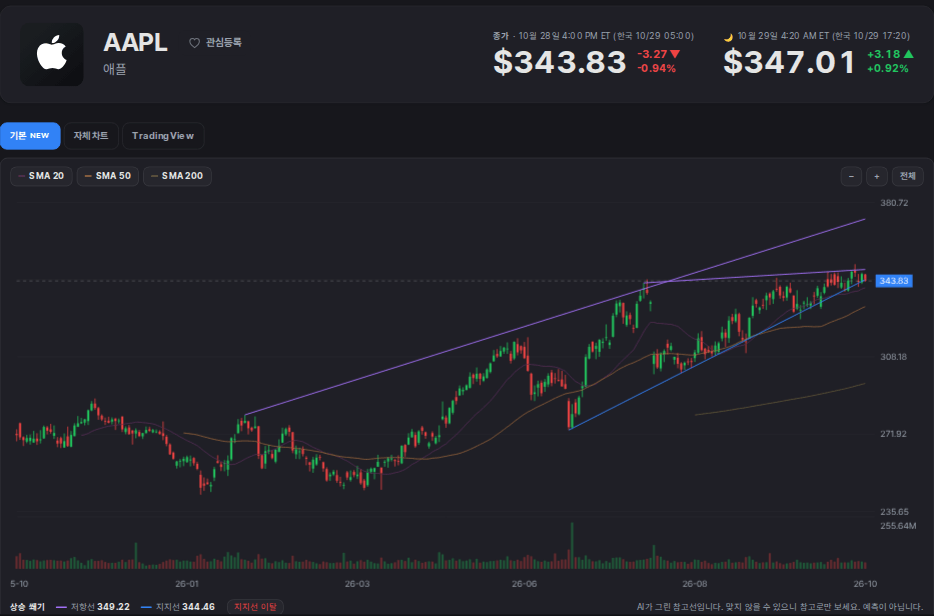
The ticker page is the screen for looking at one stock in detail.
Type a ticker or company name in the search at the top to open it.
A ticker is the short English code for a stock. Apple is AAPL.
Top: price and chart
- The large number on the left is the regular session close.
- The number on the right is the price traded before or after the session.
- Switch charts with Basic Custom Chart TradingView.
- Turn moving averages on and off with chips like SMA 20.
- The purple and blue lines are resistance and support drawn by AI.
- Click Add to watchlist next to the name to save it to My Stocks.
Left contents and company information
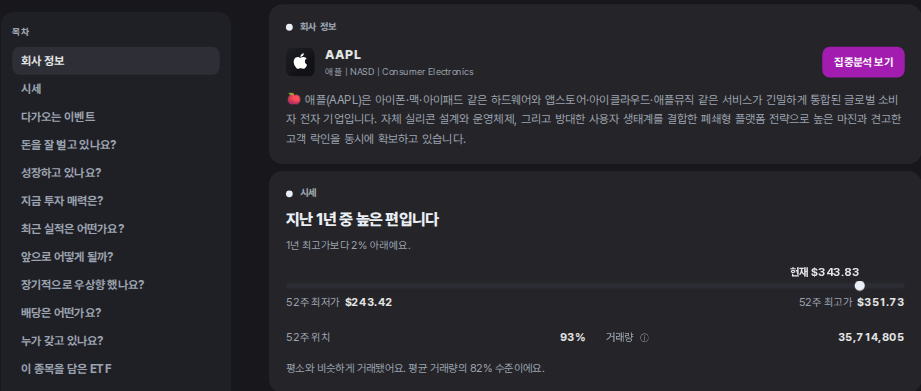
Scroll down a little and the contents stay on the left as you go.
- Click an item in Contents to jump to it.
- Company tells you what the company sells to make money.
- Click Deep dive to go to the long analysis.
- Quote shows where today's price sits within the past year.
Bottom: health cards
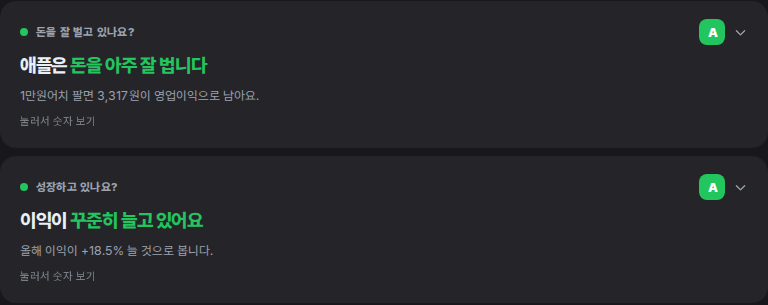
Even if you do not know the numbers, just read the questions and answers.
- Each card has one question.
- The bold line below it is the answer.
- The letter on the right is the grade.
- A is the best, and it gets worse further down.
- Use Tap to view numbers to open the figures behind it.
- The cards go in order: profit, growth, price, earnings.