Notification settings
How to choose which notifications you get and when.
Turn on notifications to get news and trading signals in your computer's browser.
You can choose which kinds you get.
Turn notifications on after you log in so they are saved to your account.
How to turn on notifications
- Log in first.
- Go to My Stocks in the menu bar.
- Click Set alerts at the top to open the settings panel.
- Click Turn on notifications.
- When your browser asks, choose Allow.
Choose what to get
- Tap Set alerts at the top of My Stocks.
- In Content alerts, turn on the posts you want.
- The morning wrap, pre-market briefing and news alerts are here.
- In Ticker & indicator alerts, tap Settings to set conditions.
- For example, get told when RSI drops below 30.
What posts you get
These are the posts you can turn on in Content alerts.
- Morning wrap: how the US market did overnight
- Pre-market briefing: what to check before the US market opens
- News alerts: right away when news about your saved stocks comes out
- Earnings reminders: a heads-up on your saved stocks' report dates
- Weekly and monthly reports: a wrap-up of the week and the month
Get them on Telegram and KakaoTalk
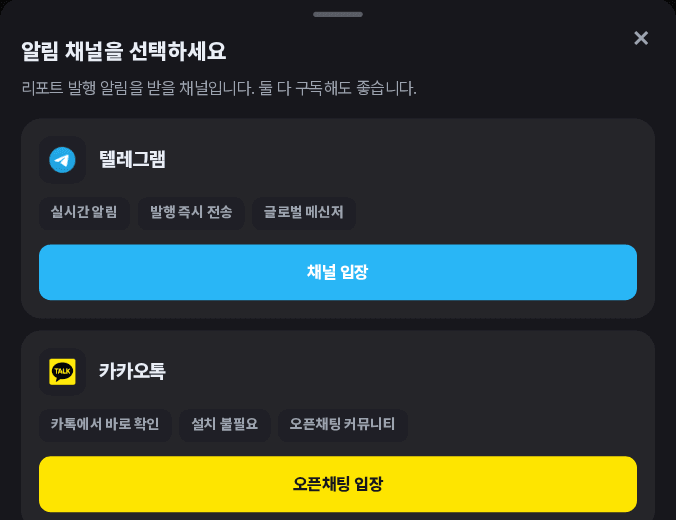
You can also get word of new reports on a messenger. No login is needed.
- Click the bell in the icon bar on the far right.
- Choose Telegram or KakaoTalk. You can use both.
- Click Join channel or Join open chat to go to that app.
How to turn notifications off
- In the notification settings, click the item you turned on again.
- Delete stock conditions in Settings.
- To turn everything off, block this site's notifications in your browser settings.